Get started: collect push subscribers on your website
You can collect push subscribers on your own website. Add one file and one line of code. Visitors who click Allow become push subscribers of your account, and your notifications show your own domain.
Subscribers from your website and from the SMS mini pages are in the same list. You send to all of them from Push > New Push.
Access: Push is part of the Mini-Games & Push feature. To turn it on for your account, contact your account manager. Your first 100 subscribers are free.
Before you start
- Your website must use HTTPS.
- You must be able to upload a file to the root folder of your website, and add a script to your pages. If you use a website builder, use its "custom code" or "header and footer scripts" setting.
- About 10 minutes for you or your web developer.
Step 1: Add your website
- Click the Push tab at the top of the app, then click Your Website.
- Enter your domain, for example
shop.example.com, and click Add website.
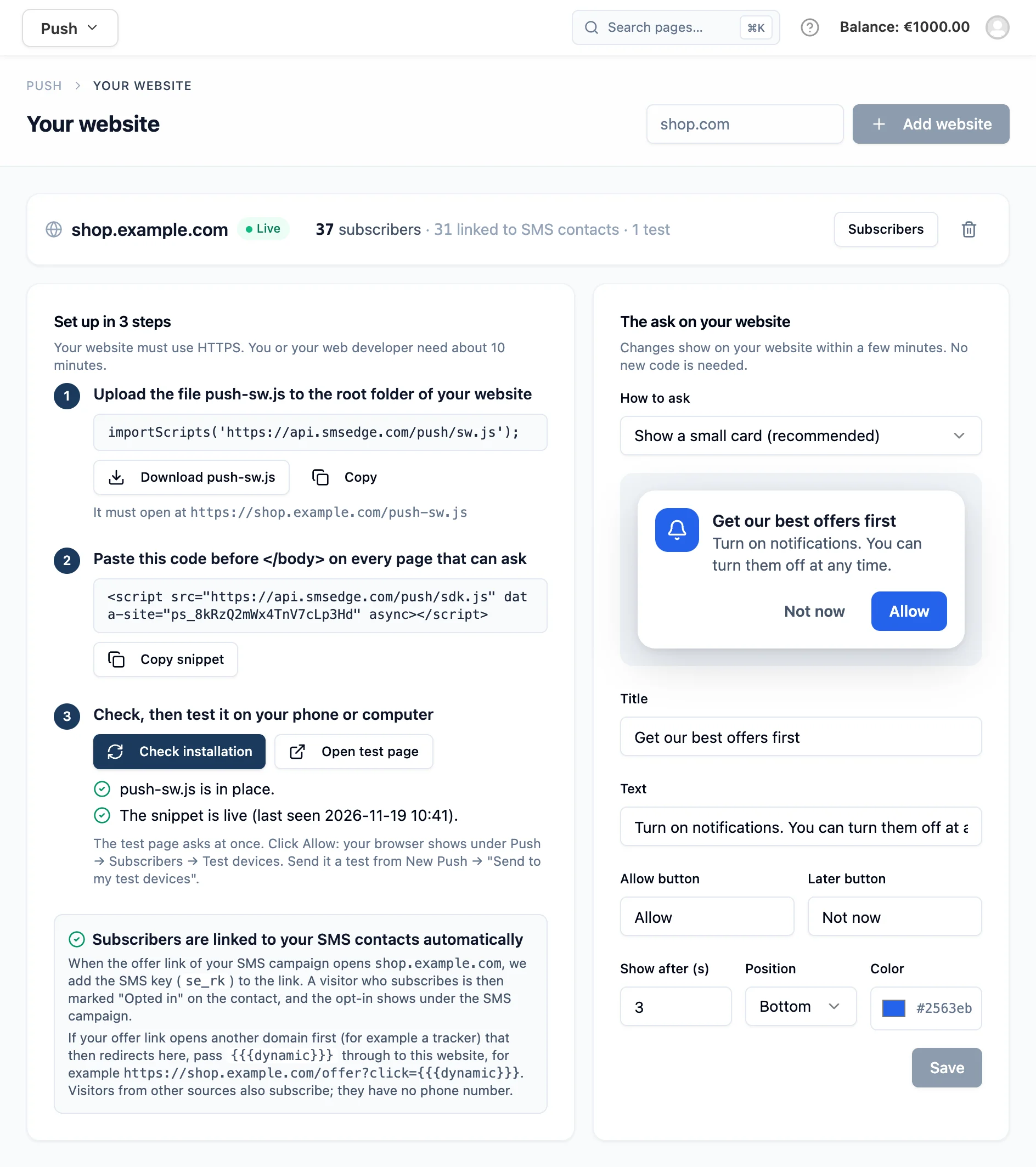
The page shows your setup steps with your own code. The code includes your site key. The site key works only on the domain that you added, so another website cannot use it.
Step 2: Upload push-sw.js
Click Download push-sw.js and upload the file to the root folder of your website. The file has one line:
importScripts('https://api.smsedge.com/push/sw.js');The file must open at https://your-domain/push-sw.js, without a redirect. The browser uses this file to show your notifications. It does not change a service worker that your website already has.
Step 3: Paste the snippet
Click Copy snippet and paste the code before </body> on every page that can ask for notifications. For example:
<script src="https://api.smsedge.com/push/sdk.js" data-site="ps_your_site_key" async></script>The script loads after your page, so it does not make your page slower.
Step 4: Check and test
- Open a page of your website once, so that the snippet calls us.
- In the app, click Check installation. Two green checks mean that push-sw.js is in place and the snippet is live. The website then shows Live.
- Click Open test page. Your website opens with
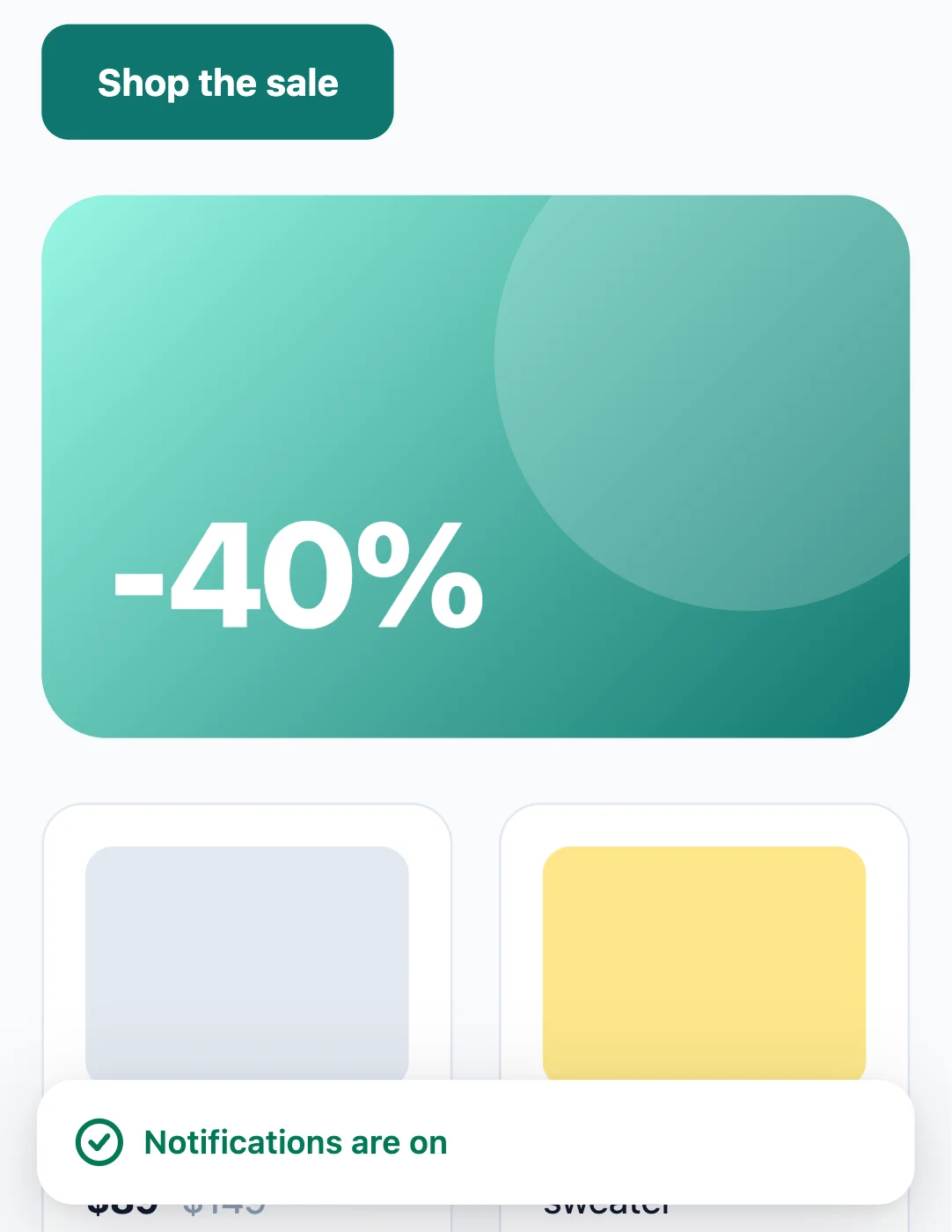
?se_push_test=1, and the ask shows at once. - Click Allow, then click Allow in the browser prompt. The card shows Notifications are on.
- Go to Push > Subscribers. Your browser shows in Test devices as Your website.
- Go to Push > New Push. In Send test, click Send to my test devices. The notification shows with your domain.
A browser that you subscribe from the test page is a test device. It gets test pushes only, never your push campaigns, and it is not counted in your 100 free subscribers.
How the ask works
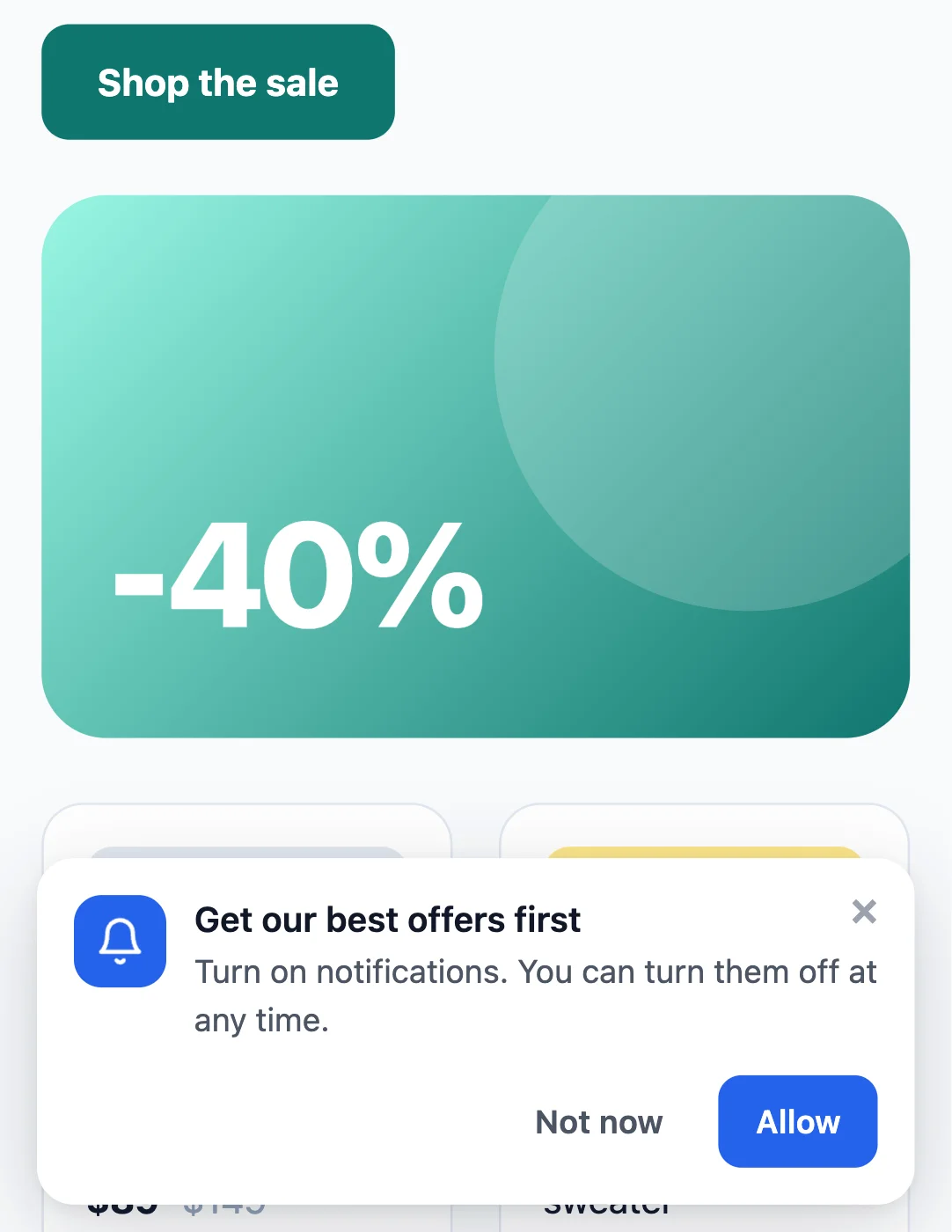
- The card shows a few seconds after the page opens (Show after, 3 seconds by default), at the bottom or the top of the screen.
- Allow opens the browser prompt. The card tells the visitor where to click.
- Not now or the close button hides the card. We ask this browser again after 7 days.
- If the visitor blocks notifications in the browser prompt, we do not ask this browser again.
- A subscribed visitor does not see the card again.
- Browsers that cannot get push notifications (for example Safari on iPhone, and in-app browsers) do not see the card.
Change the ask
In The ask on your website, change the title, the text, the button texts, the delay, the position and the color, then click Save. The preview shows the card. Your website shows the change within a few minutes. You do not change your code.
Ask from your own button
In How to ask, select Only from my own button. The card does not show. Call SmsEdgePush.ask() when a visitor clicks your button:
<button onclick="SmsEdgePush.ask()">Get sale alerts</button>SmsEdgePush.ask() returns a promise with the result: subscribed, denied, dismissed or unsupported. Call it from a click only: Safari and Firefox show the browser prompt only after a click.
Subscribers are linked to your SMS contacts
You do not need to set up anything. When the offer link of your SMS campaign opens your website, we add the SMS key to the link as se_rk. For example:
https://shop.example.com/sale?utm_source=sms&se_rk=190441-1119-57077953636The snippet reads the key and keeps it for 30 days, also when the visitor goes to other pages. When the visitor subscribes:
- The contact shows as Opted in in your contacts and in the Push Opt-in segment field.
- The subscriber counts under the SMS campaign in Push > Subscribers, and you can select the campaign in the push campaign audience.
- The SMS mini page does not ask this contact again, because the contact is already subscribed.
Push > Your Website shows how many subscribers of each website are linked to SMS contacts. A key links only a contact of your own account.
Visitors from other sources (search, ads, email) also subscribe. They have no phone number, and you reach them with All subscribers.
Your offer link opens another domain first
If your SMS offer link opens a tracker or another domain that then redirects to your website, we cannot add the key. Pass {{{dynamic}}} through to your website in any parameter, as for the conversion pixel:
https://shop.example.com/sale?click={{{dynamic}}}The snippet finds the key in any parameter. If your offer URL already has {{{dynamic}}} for your conversion pixel, you do not need to change it.
See your results
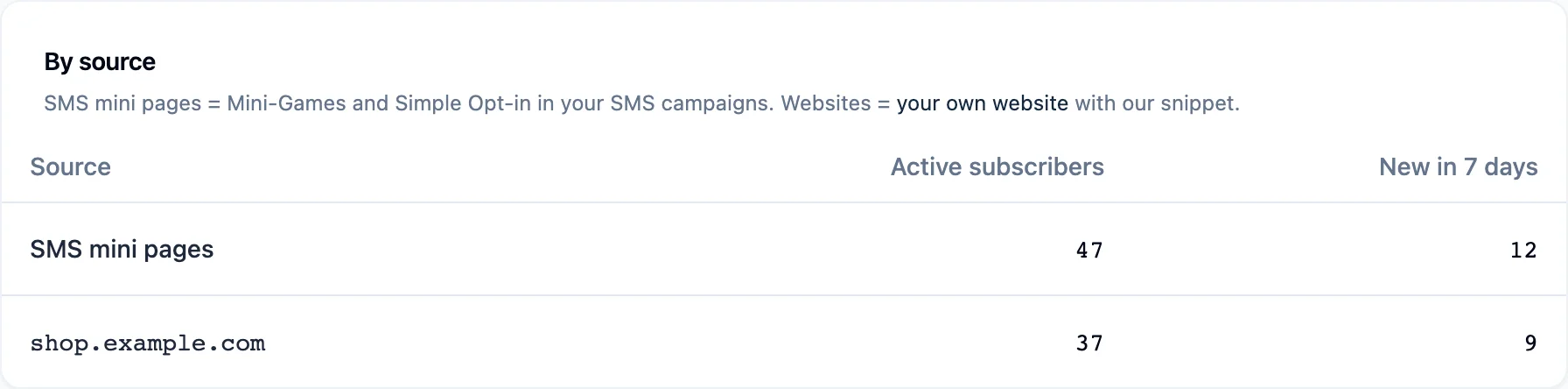
Go to Push > Subscribers. The By source card shows the subscribers from the SMS mini pages and from each of your websites. Push > Your Website shows the subscribers of each website.
Troubleshooting
Check installation says push-sw.js is not found
- Upload the file to the root folder, so that it opens at
https://your-domain/push-sw.js. A file in a subfolder does not work. - The file must not redirect, for example from
shop.example.comtowww.shop.example.com. Add the domain that your visitors see. - Your server must send the file as JavaScript (
text/javascript).
The card does not show
- Open the page in a normal window. A private (incognito) window cannot subscribe.
- If you clicked Not now, the card shows again after 7 days. Use Open test page to show it at once.
- If you blocked notifications for your website, allow them again in the site settings of your browser.
- The page must be on the domain that you added.
www.and the domain withoutwww.are the same website. - Open the browser console. A line that starts with
[SmsEdgePush]tells the cause.
My website already has push notifications from another provider
Our worker uses its own scope (/se-push/), so it does not replace the service worker of your website or of another provider. A visitor can be subscribed to both.
Does the snippet collect personal data?
The snippet sends the push subscription of the browser, the browser language and the SMS key if there is one. It does not set cookies. It keeps the SMS key and the visitor's answer in the browser storage (localStorage) of your website. Add push notifications to the privacy policy of your website.
Need more help? Contact support.