Get started: turn SMS clicks into push subscribers
Push notifications let you reach your SMS contacts again, in their browser, without a new SMS. You collect push subscribers with a mini page: a short page that opens from your SMS link, asks for permission to send notifications, and then opens your offer.
This guide shows the full flow: turn on the mini page in an SMS campaign, test it on your phone, read the results and send your first push campaign.
You can also ask for notifications on your own website, so that your pushes show your own domain. See Get started: collect push subscribers on your website. Subscribers from both are in one list.
Access: Push is part of the Mini-Games & Push feature. To turn it on for your account, contact your account manager.
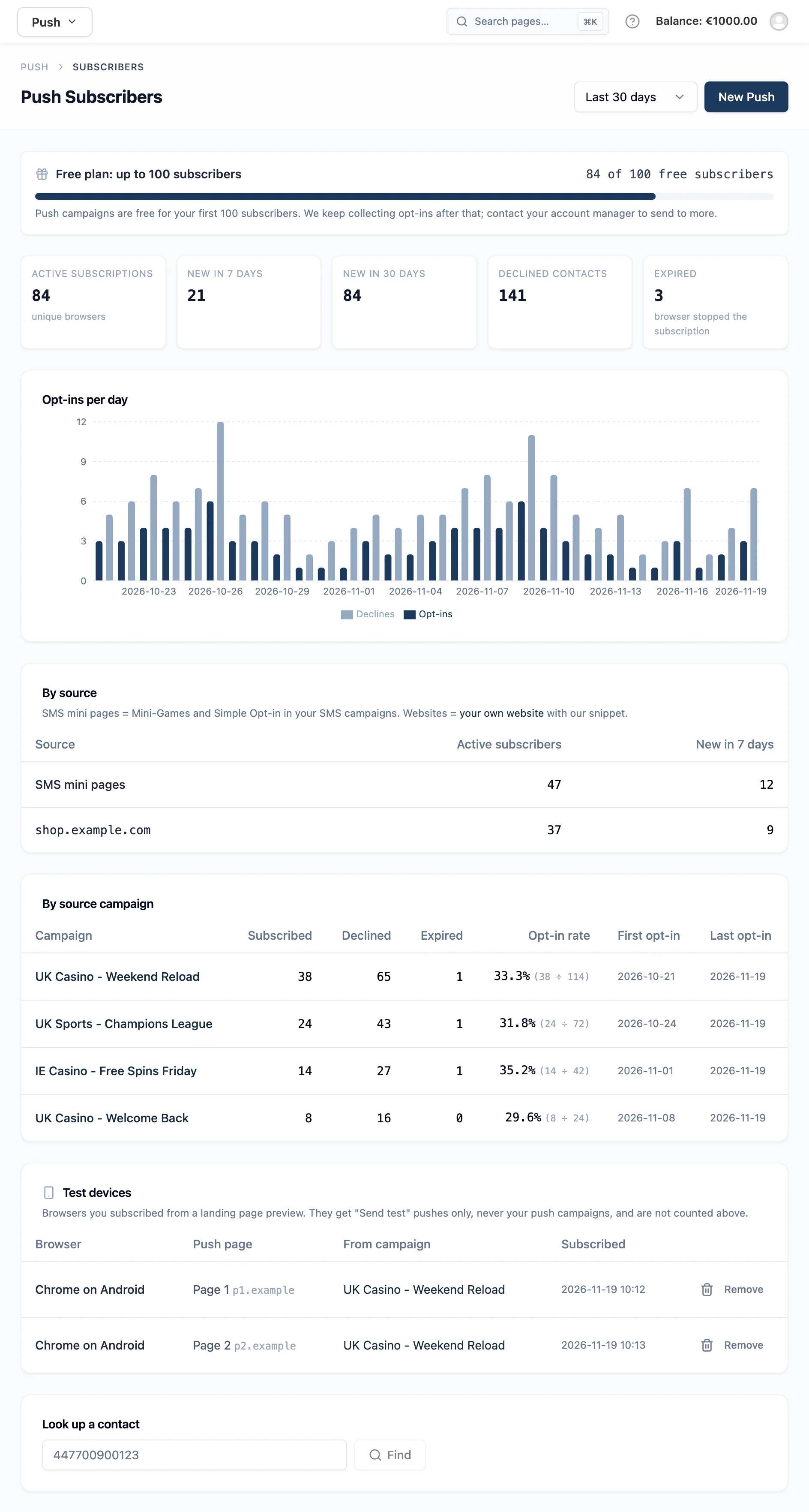
Free for your first 100 subscribers: push campaigns are free for up to 100 subscribers. After 100, we continue to collect opt-ins for you, and your push campaigns go to your 100 oldest subscribers. To send to all of them, contact your account manager. Push > Subscribers shows how many of your 100 free places you use.
How it works
- A contact taps the link in your SMS.
- If the browser can get push notifications, the link opens a mini page on one of our push domains.
- The mini page asks the contact to allow notifications.
- The contact answers. Then the offer opens. The click, the signup and the sale show on your SMS campaign as usual.
- A contact who allows notifications becomes a push subscriber of your account. You can send push campaigns to them.
The two mini pages
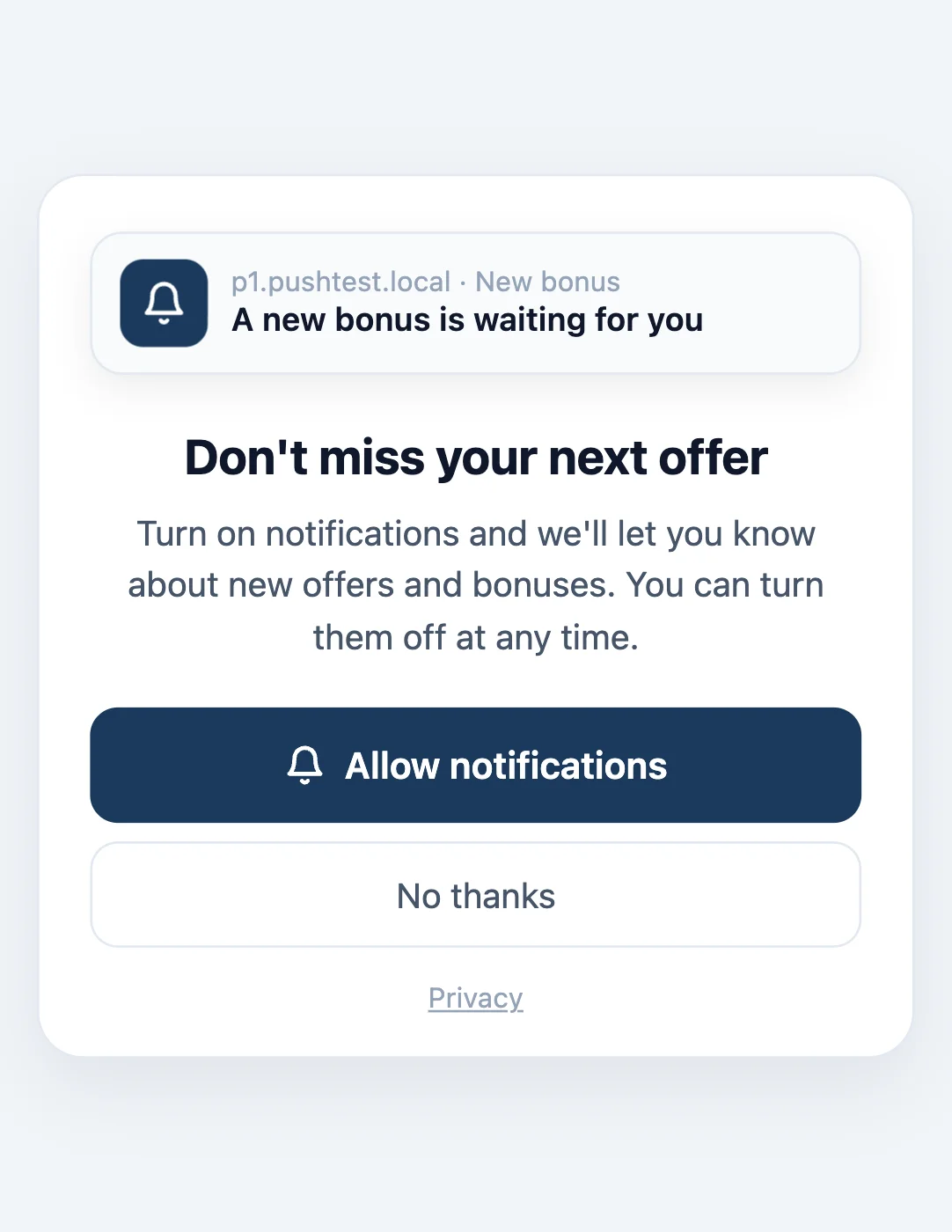
- Simple Opt-in: a short page with no game. It shows a sample notification, a headline, a short text, Allow notifications and No thanks. After the answer, it opens your offer. The page shows in the language of the visitor.
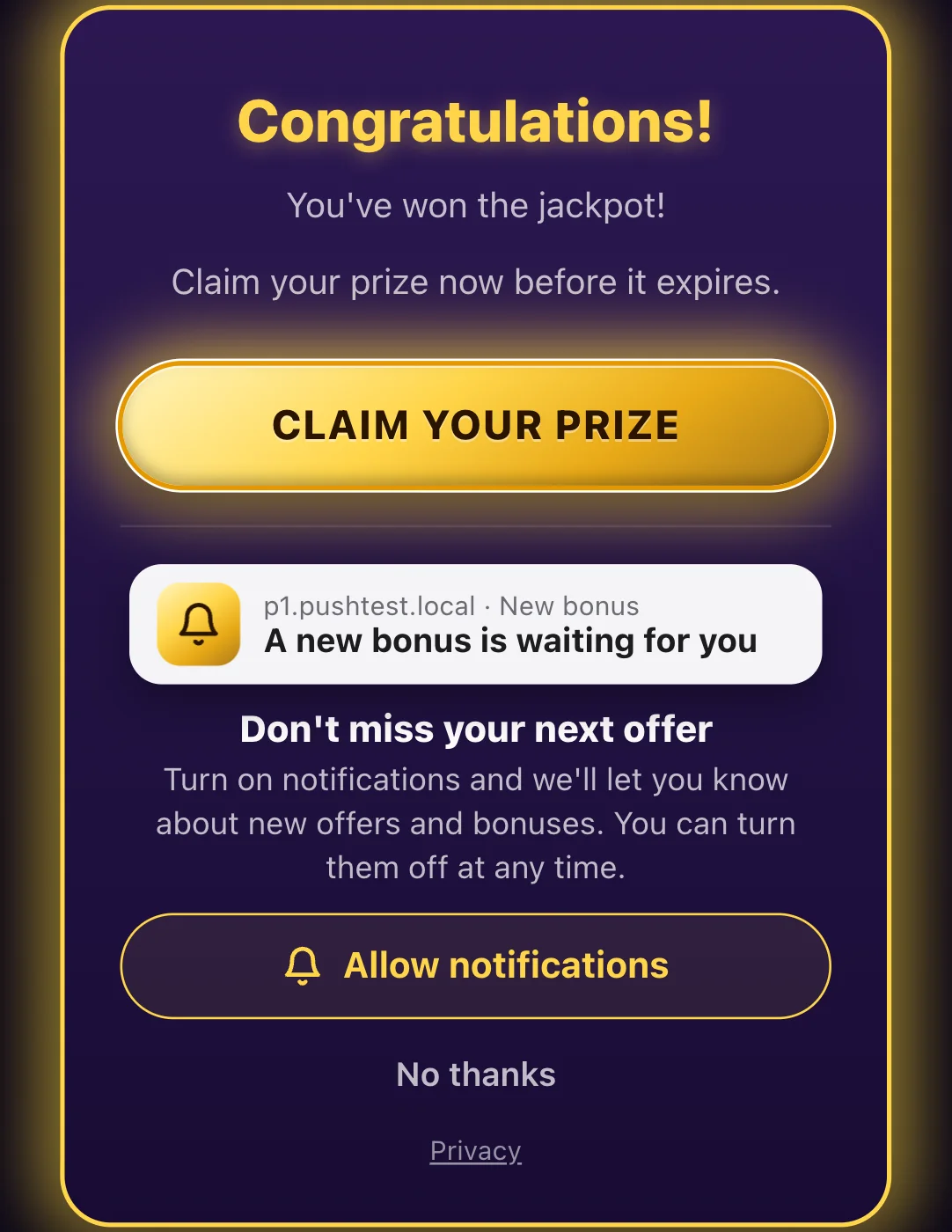
- Mini-game (Wheel, Slot or Emblem Match): the contact plays and wins. The win pop-up shows the Claim button first, and the contact can use it at once. Under Claim, an optional block asks for notifications. The prize never depends on the answer. All 3 games ask the same way.
When the contact taps Allow notifications, the page tells them to tap Allow in the browser prompt and shows an arrow to the prompt. After they allow, the page shows Notifications are on.
Devices that can subscribe
| Device | Can subscribe | Goes straight to the offer |
|---|---|---|
| Android | Chrome, Samsung Internet, Firefox, Opera, Edge | In-app browsers (Facebook, Instagram, Telegram, TikTok and others), Opera Mini, UC Browser, Huawei Browser |
| iPhone and iPad | None | All browsers |
| Computer | Chrome, Firefox, Edge, Opera, Safari 16 or later on Mac | Other browsers |
When we do not ask again
- Allow: the contact is subscribed. Their next links go straight to the offer, or straight to Claim in a game.
- Block in the browser prompt: we never ask this phone again.
- No thanks: we do not ask this phone again for 60 days.
Step 1: Turn on the mini page in your SMS campaign
- Open your SMS campaign and click New Send. If the campaign has not been sent yet, the send form is already open.
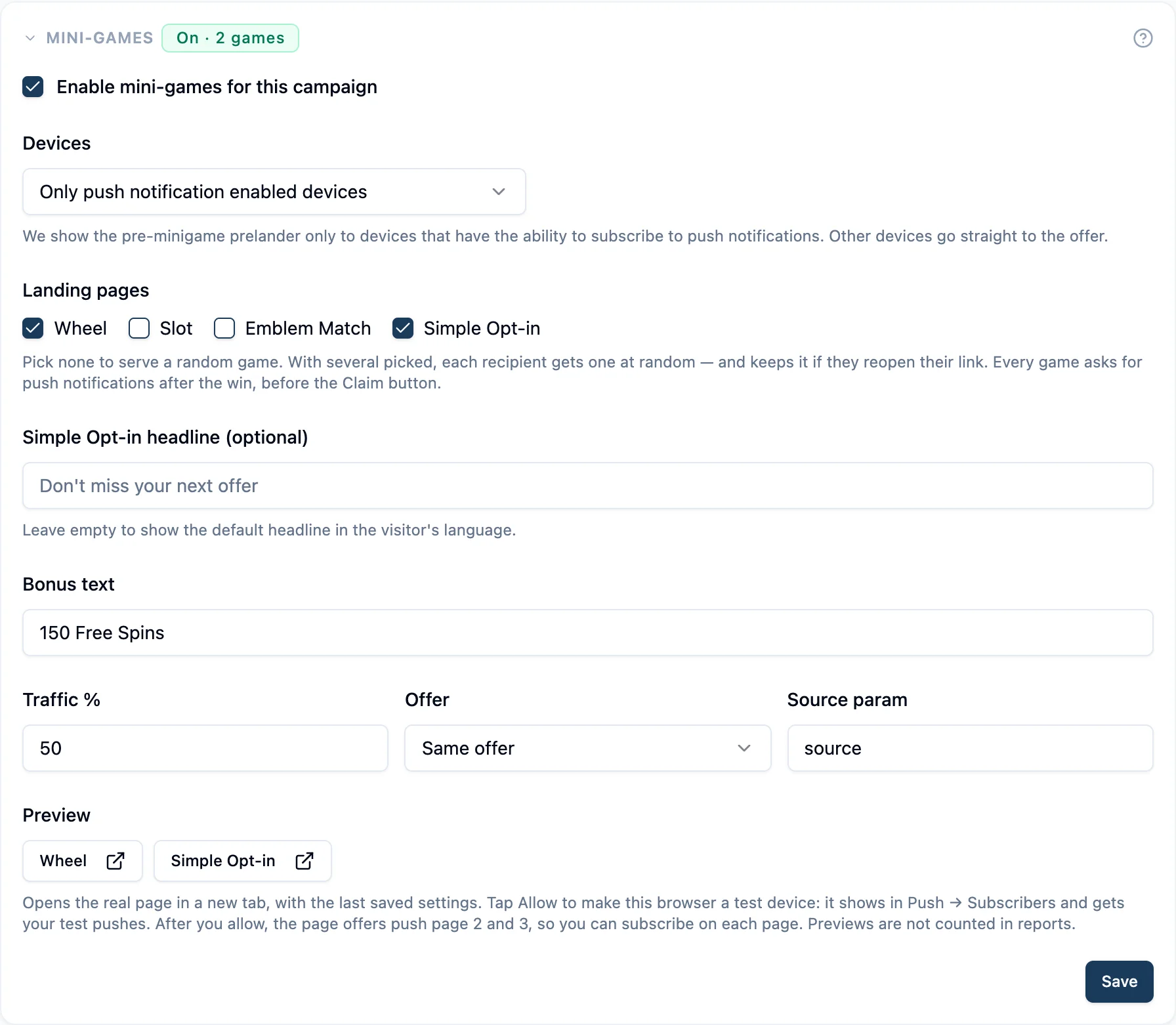
- Open Offers. Below your offers, click Mini-Games to expand the card.
- Select Enable mini-games for this campaign.
- In Devices, keep Only push notification enabled devices.
- In Landing pages, select Simple Opt-in, one or more games, or both.
- Set Traffic % and click Save.
You can also change these settings after you send. Open the campaign and go to Logs > Offers.
| Setting | What it does |
|---|---|
| Devices | Only push notification enabled devices shows the mini page only to browsers that can subscribe. All other devices go straight to the offer. All devices shows the game to everyone, and asks for notifications only where push is possible. |
| Landing pages | The pages that we can show. If you select more than one, each contact gets one at random and keeps it when they open their link again. If you select none, we show a random game. |
| Simple Opt-in headline | Optional. Shows when you select Simple Opt-in. Leave it empty to show the default headline in the language of the visitor. |
| Bonus text | The prize that the game shows, for example "150 Free Spins". It does not change the offer. |
| Traffic % | The share of messages that go through the mini page. The other messages link straight to the offer. 0 turns the mini page off. |
| Offer | Same offer opens the offer of the link. Rotate offers picks an offer by weight when the contact claims. |
Pro tip: Start with Traffic % at 50. Half of the messages go through the mini page and half go straight to the offer. Compare the two halves in Logs > Mini-Game before you go to 100.
Note: If the card shows "No push pages are set up yet", the mini page cannot ask for notifications. Contact support.
Step 2: Test it on your phone
Fastest test: Preview
You do not need to send an SMS to see and test your mini pages.
- In the Mini-Games card, click Save. Then, under Preview, click a landing page (for example Simple Opt-in or Wheel). The real page opens in a new tab. To test on your phone, open the same campaign in the app on your phone.
- Tap Allow notifications, then tap Allow in the browser prompt. In a game, play and win first. The page shows Notifications are on.
- This browser is now a test device of your account. Go to Push > Subscribers. The Test devices card shows the browser and the push page.
- To subscribe the same browser on the next push page, tap Subscribe on page 2. Each push page is a separate test device.
- Go to Push > New Push. In Send test, click Send to my test devices. The notification shows in your browser.
Test devices get test pushes only. They never get your push campaigns, and they are not counted in your results or in your 100 free subscribers. Previews do not add clicks. To stop test pushes to a browser, click Remove in the Test devices card.
Full test with an SMS
Use an Android phone with Chrome. Use a test campaign with Traffic % at 100, so that your message goes through the mini page.
- Send the test campaign to your phone.
- Open the link in Chrome. If your SMS app opens the link in its own browser, open it in Chrome.
- Tap Allow notifications, then tap Allow in the browser prompt. The offer opens.
- Go to Push > Subscribers. In Look up a contact, enter your phone number. It can take a few minutes until your phone shows as subscribed.
- Go to Push > New Push. In Send test, enter your phone number and click Send. The notification shows on your phone.
Important: Do not tap Block or No thanks on your test phone. We do not ask a phone again after a block, or for 60 days after No thanks.
Step 3: Read the opt-in results
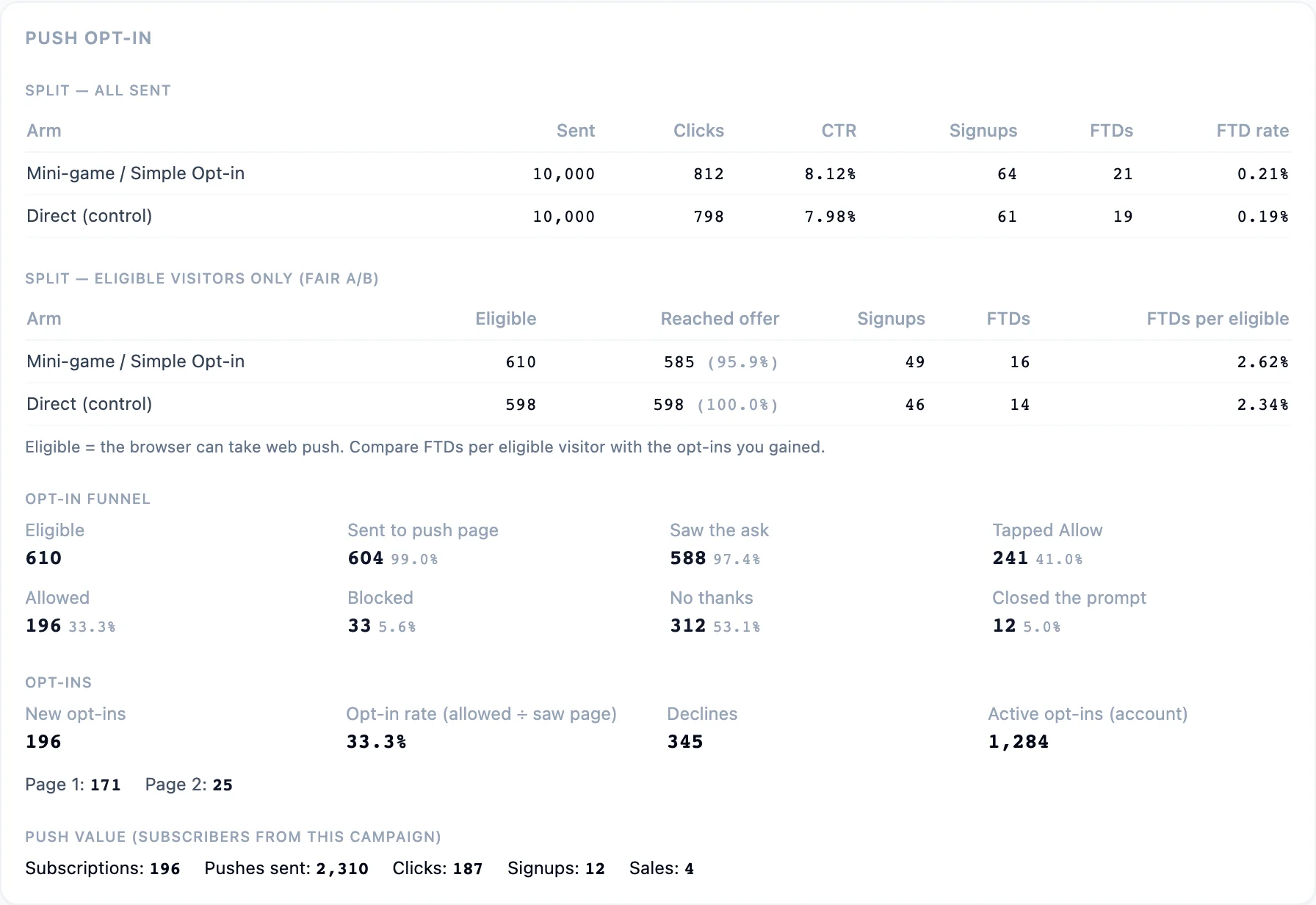
Open the SMS campaign and go to Logs > Mini-Game. The Push Opt-in card shows:
- Split — all sent: sent, clicks, signups and FTDs for the mini page and for the direct links (control).
- Split — eligible visitors only (fair A/B): the same comparison, only for visitors whose browser can subscribe. Use this table to see if the mini page changes your FTDs.
- Opt-in funnel: how many visitors saw the ask, allowed, blocked, tapped No thanks or closed the prompt.
- Opt-ins: new opt-ins, the opt-in rate and the declines.
- Push value: the subscribers from this campaign and the pushes that you sent to them.
For all your campaigns together, go to Push > Subscribers. This page shows how many of your free subscribers you use, the opt-ins per day, your subscribers by source (SMS mini pages or your website) and by source campaign, and your test devices.
Step 4: Send your first push campaign
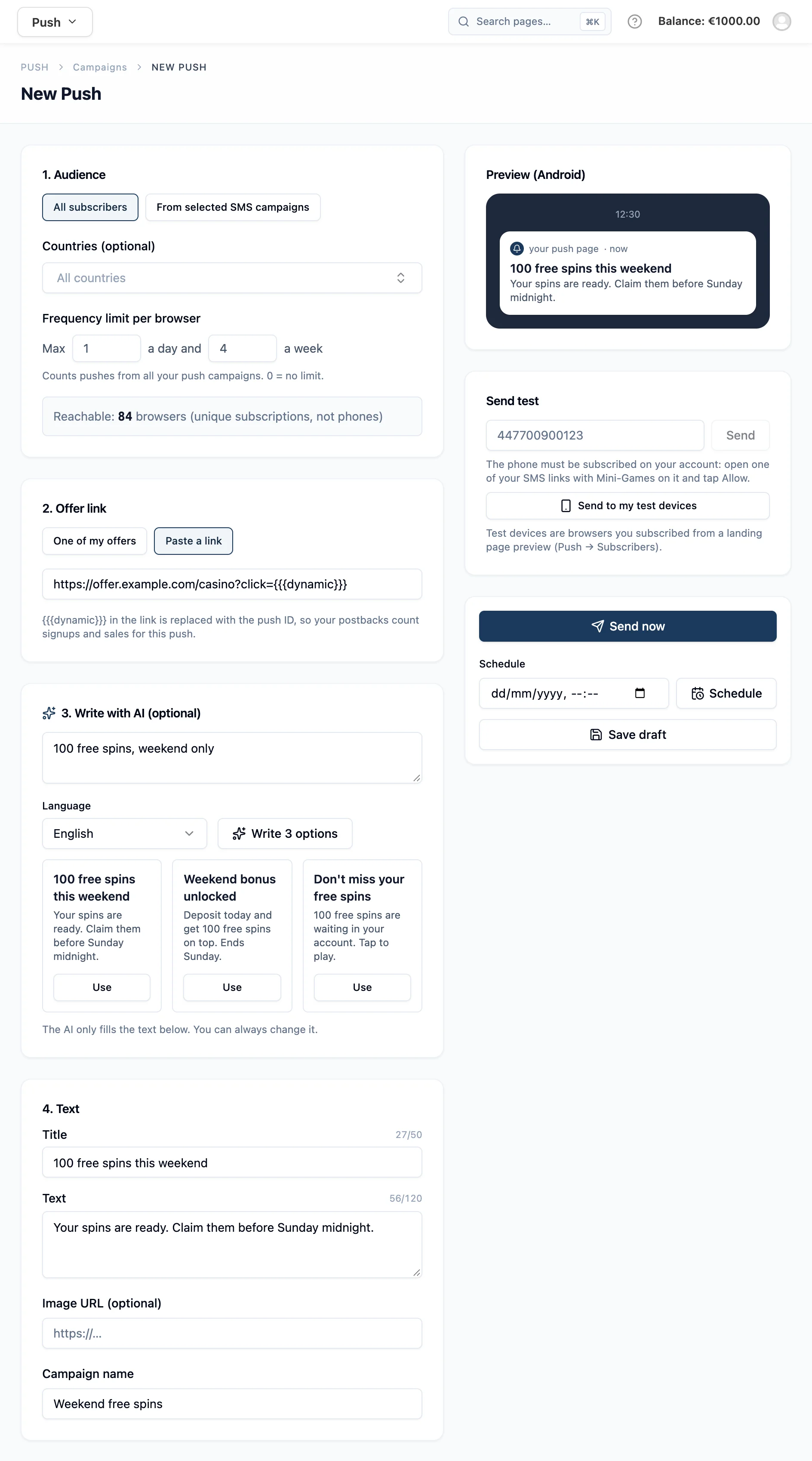
Click the Push tab at the top of the app, then click New Push.
- Audience: select All subscribers or From selected SMS campaigns. You can also select countries. Reachable shows how many browsers get the push. If you have more subscribers than your limit (100 on the free plan), it also shows how many do not get the push.
- Frequency limit per browser: set the maximum number of pushes a day and a week. The limit counts the pushes from all your push campaigns. The highest limit is 2 a day and 14 a week, for every account: Chrome turns off notifications for sites that send many pushes that people ignore.
- Offer link: select one of your offers or paste a link. You can use
{{{dynamic}}}in the link to track signups and sales, as in SMS. - Write with AI (optional): describe the offer, select the language and click Write 3 options. Click Use on an option to copy it into the text.
- Text: write the title and the text, and add an image URL if you want. Check the Preview (Android).
- Click Send now, or set a time and click Schedule.
The push campaign page shows the sent, clicked, signed up and sales numbers. Skipped by limit shows the browsers that did not get the push because of the frequency limit.
Pro tip: In Segments, use the Push Opt-in field. For example, make a segment of contacts that are Never asked and send them an SMS campaign with the mini page on.
Troubleshooting
The campaign has no opt-ins
- Make sure that Traffic % is more than 0.
- Look at the devices of your audience. iPhone users and in-app browsers cannot subscribe, so they go straight to the offer.
- If the Mini-Games card shows "No push pages are set up yet", contact support.
The link opens on a different domain
This is correct. A push subscription belongs to one domain, so the mini page opens on one of our push domains. This keeps your subscribers reachable for a long time. Your offer link does not change.
Microsoft Edge shows no prompt
Edge can hide the notification prompt and show only a small bell icon in the address bar. The funnel then counts the visit as Closed the prompt, and the offer opens.
The preview does not subscribe my browser
A private (incognito) window cannot subscribe. Use a normal window. If you blocked notifications for the push page before, allow them again in the site settings of your browser, then reload the preview.
Does the mini page change my click count?
No. The mini page does not add clicks. Each link counts one click at most, the same as a direct link.
For the free plan, iPhone, frequency limits and unsubscribes, see the Push notifications FAQ.
Need more help? Contact support.