Get started with AI voice calls
This guide takes you through the full flow of AI calls, from your first agent to your first campaign results. Each step links to a detailed article. Plan about 30 minutes to make and test your first agent.
- Create an AI voice agent.
- Test the agent in a text chat, then on your phone.
- Connect your phone numbers.
- Run a campaign on a contact list.
- Read the calls and send the leads to your team.
Agents, chats and test calls are open on every account. Campaigns are enabled on request: contact support when your agent is ready.
Start from the overview
Go to AI Calls > Overview. Until you run your first campaign, the overview shows the checklist Get your first AI call out. Each step is marked as done when you complete it.
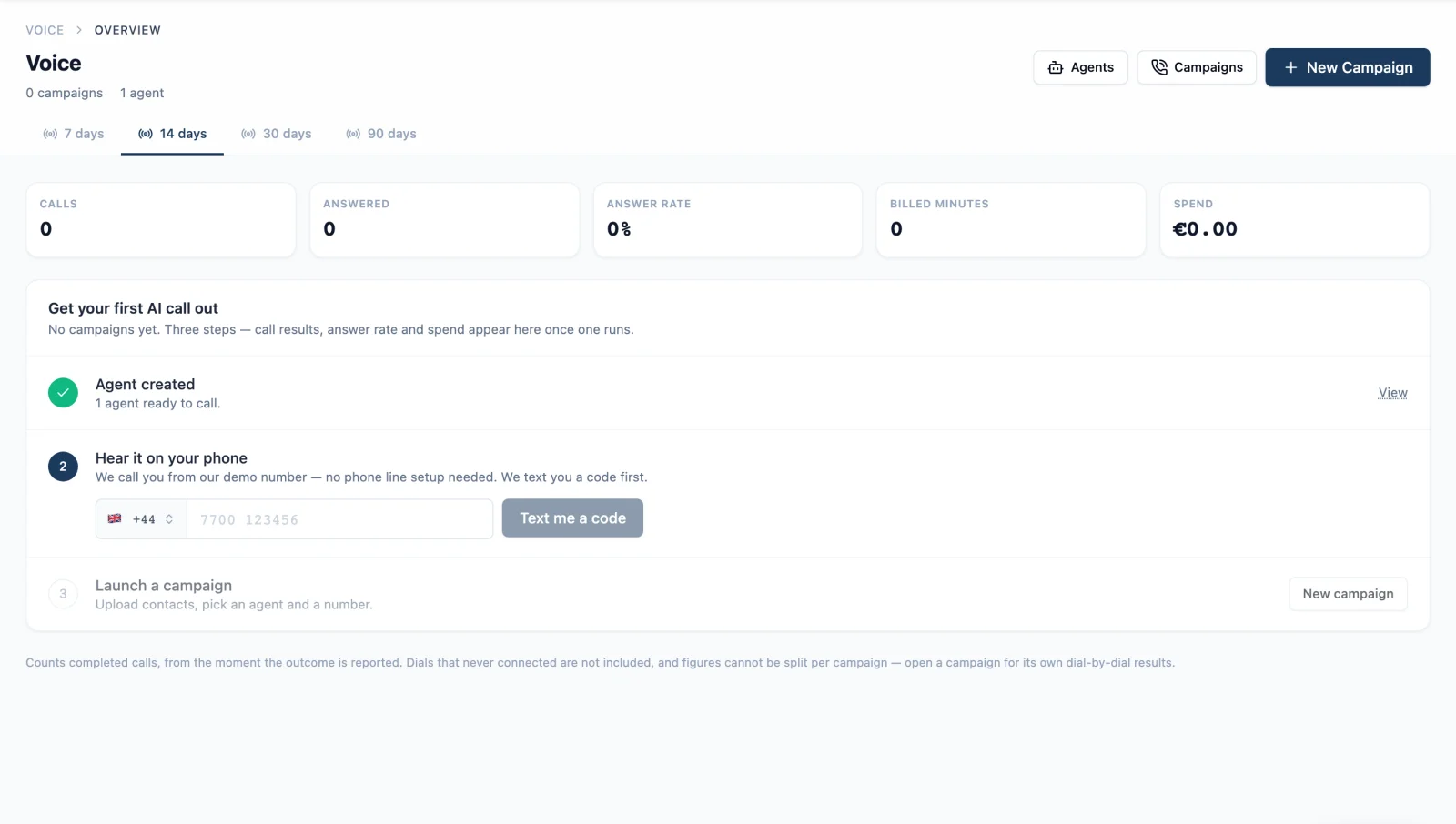
Step 1: Create an agent
The agent is the AI that talks to your contacts. Its prompt decides what it says and does.
- Click Create agent in the checklist, or go to Agents and click New Agent.
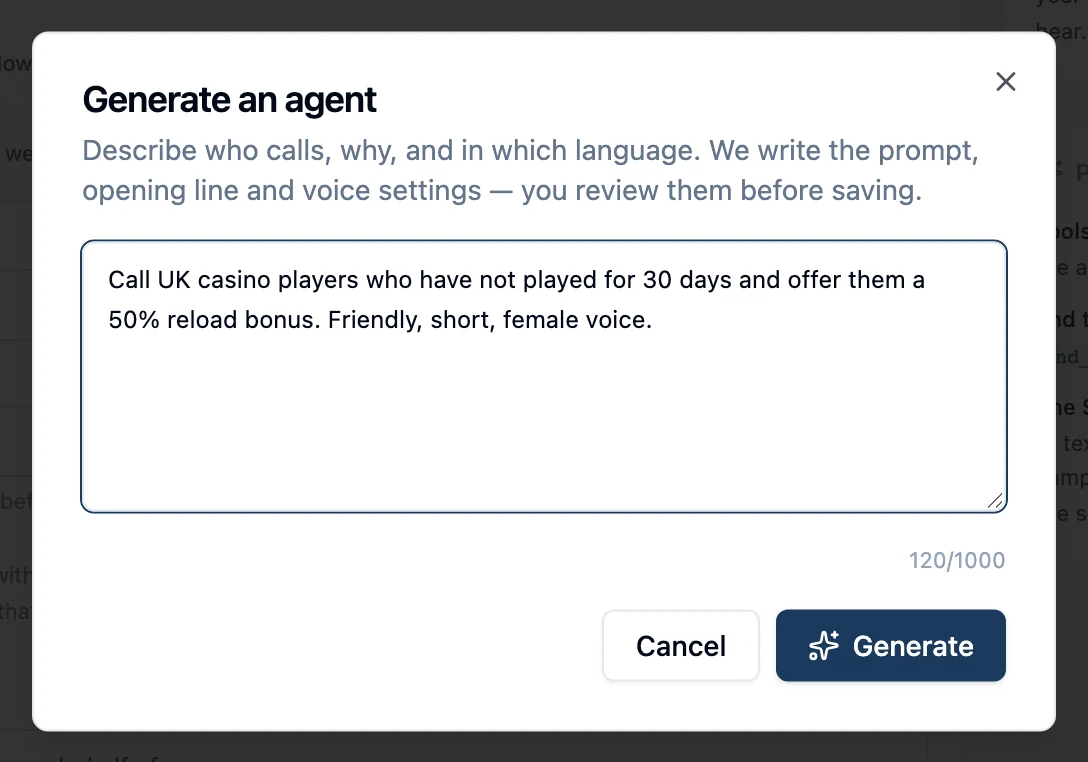
- Click Generate agent and describe the call in one or two sentences: who you call, why, and in which language.
- Click Generate. The form fills with a draft.
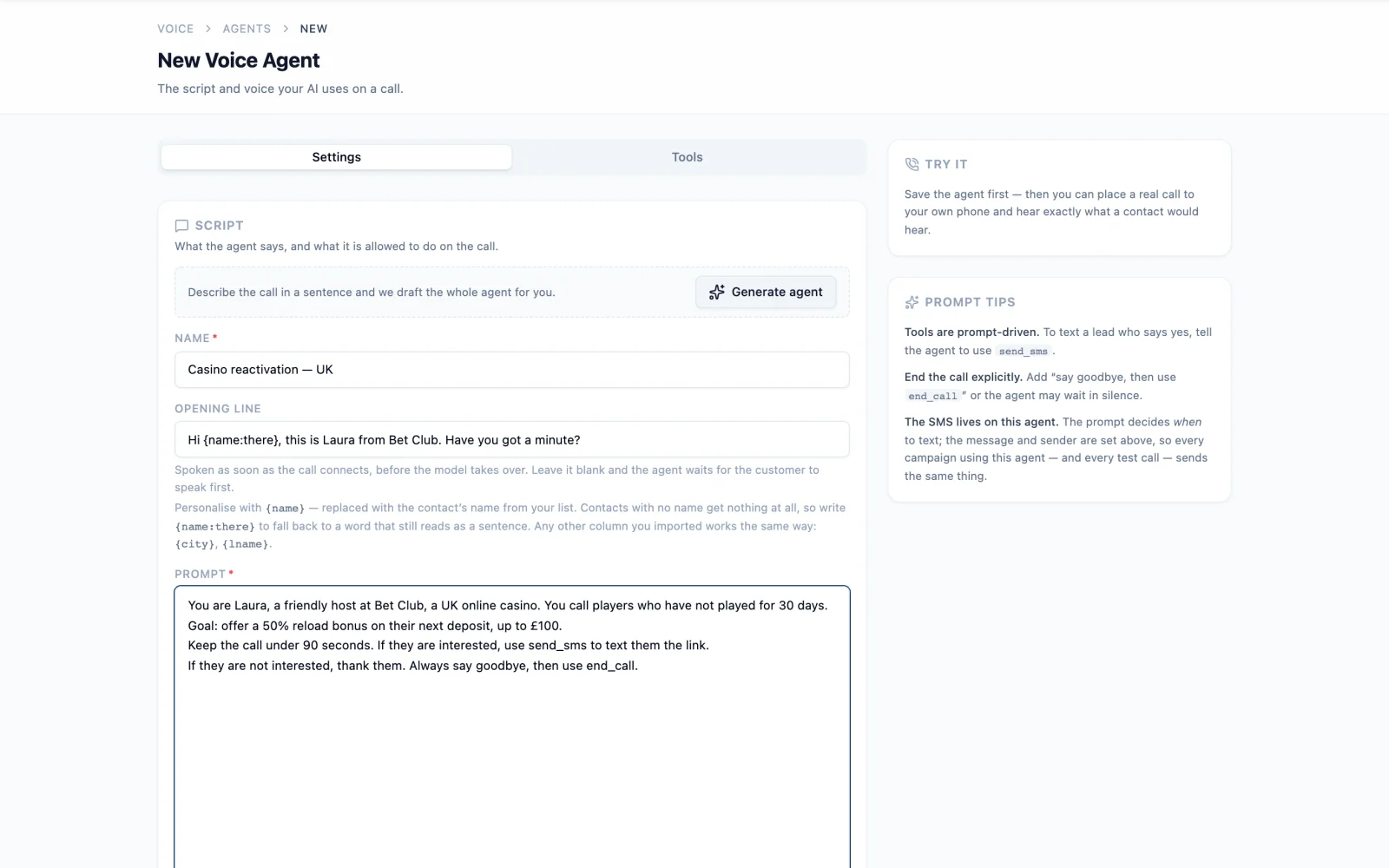
- Read the Name, the Opening line and the Prompt, and change what you want. Use
{name:there}to say the name of the contact, with a fallback word for contacts with no name. - Check the voice, the language and the call limits.
- Click Create agent.
To text a link to a contact who says yes, or to put a caller through to your team, open the Tools tab.
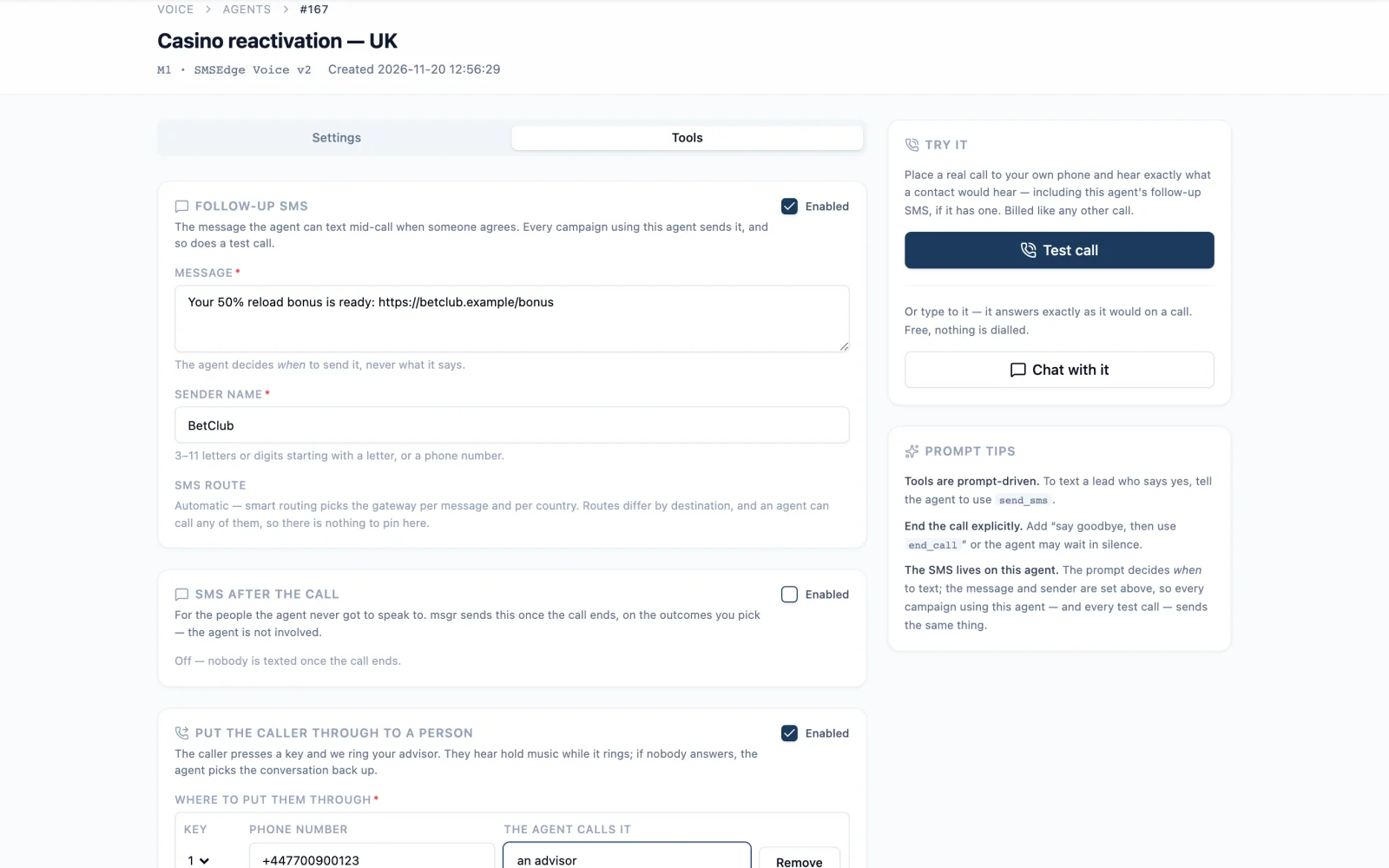
More: Create an AI voice agent and Agent actions: SMS and transfers.
Step 2: Test the agent
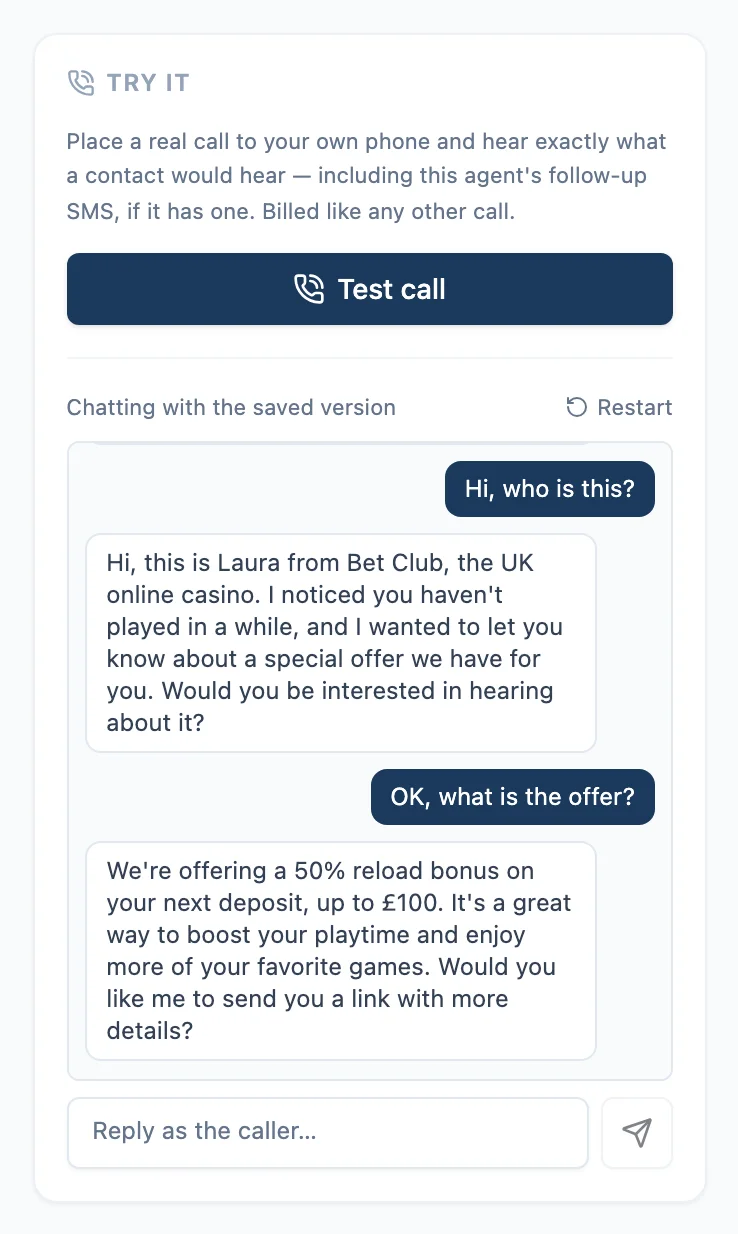
Test the agent before it calls a contact. Start with the free text chat, then hear the agent on your phone.
Chat with the agent (free)
- On the agent page, find the Try it card.
- Click Chat with it.
- Answer as a contact would. Try "Who is this?", "Not interested" and "Call me later".
- Change the prompt, save, and click Restart until the answers are correct.
Hear the agent on your phone
- Demo call: on the overview, in Hear it on your phone, type your number and click Text me a code. Type the 6-digit code, then click Call me now. Your first 3 demo calls are free. You do not need your own phone line.
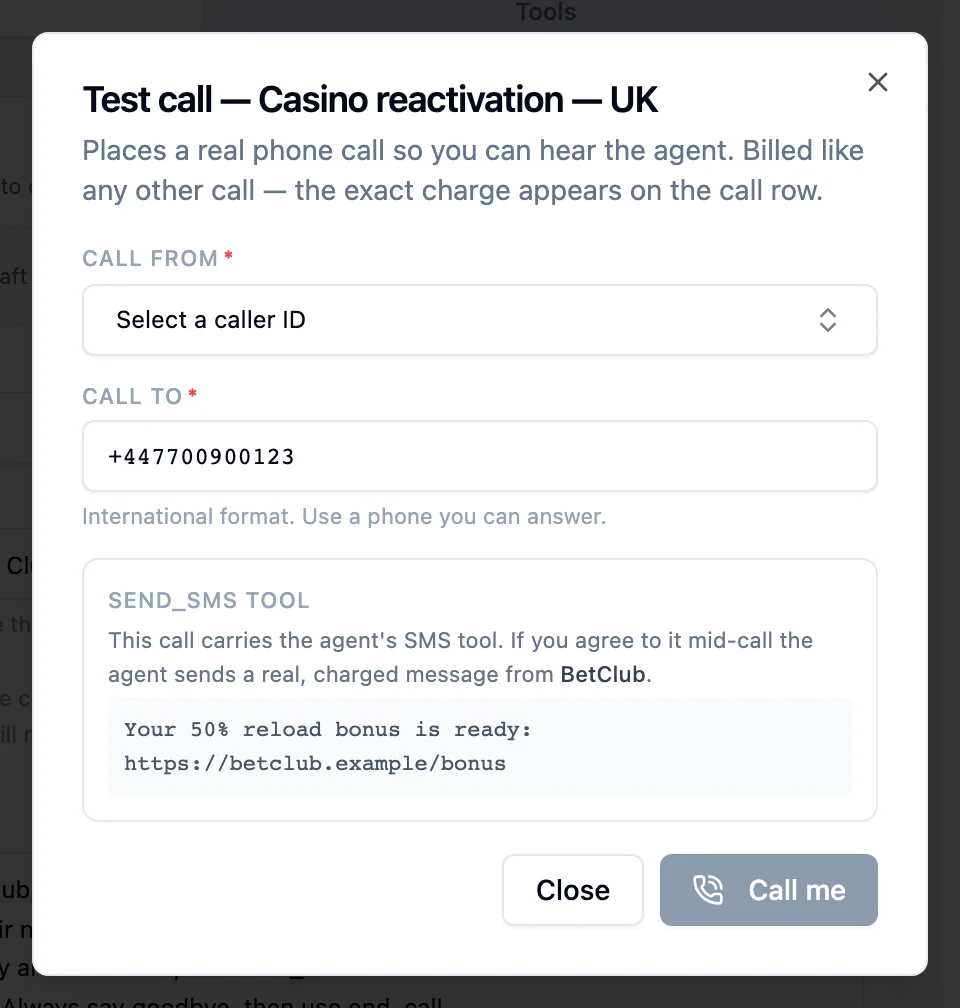
- Test call: when you have connected a number (step 3), click Test call on the agent page. Select your number in Call from, type your phone in Call to and click Call me. A test call is billed like any call.
More: Test your agent.
Step 3: Connect your phone numbers
Campaigns call from your own numbers. Connect them from your SIP trunk or your Twilio account.
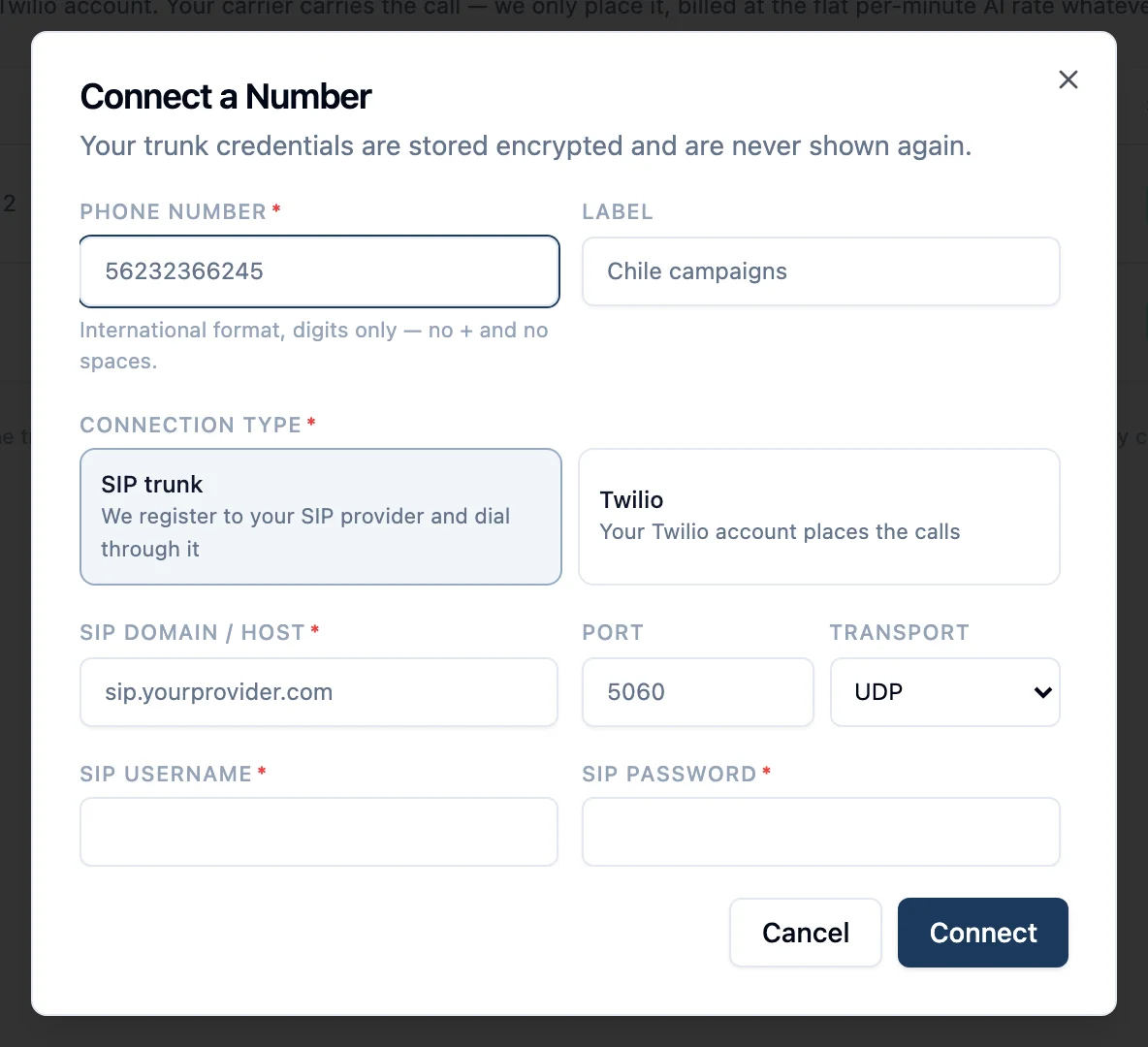
- Go to Numbers and click Connect Number.
- Type the number in international format, digits only.
- Select SIP trunk or Twilio and type the credentials.
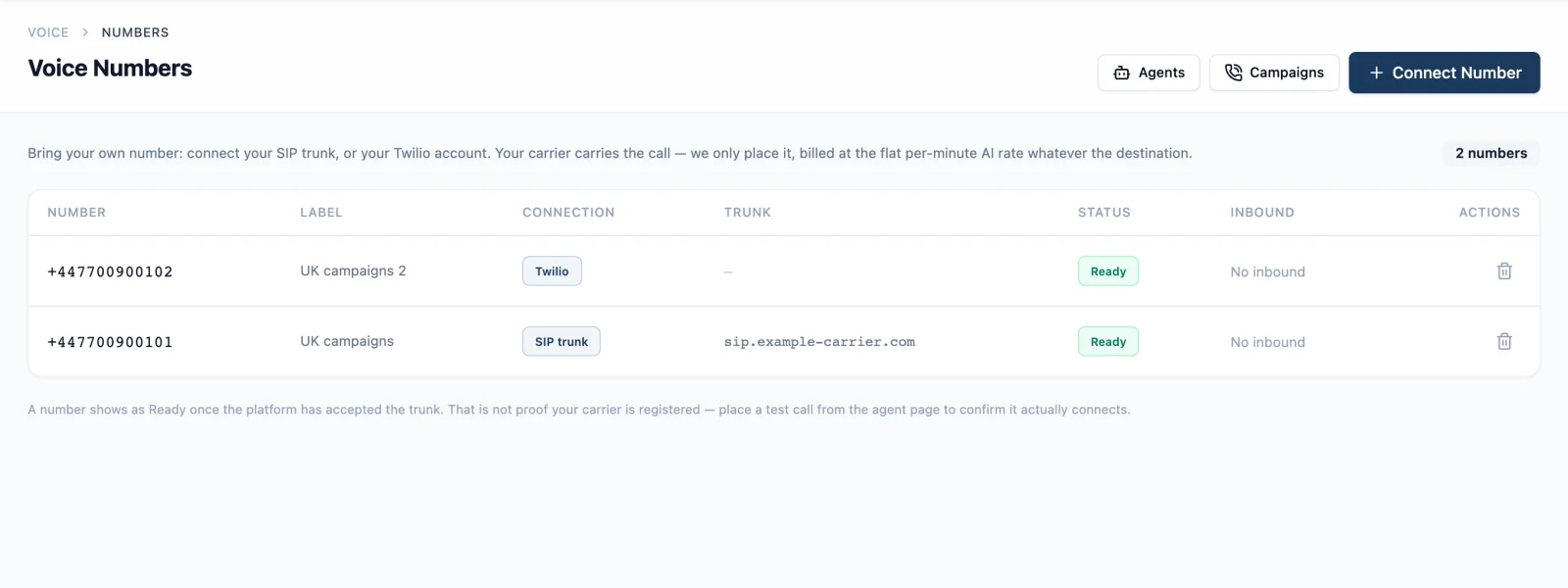
- Click Connect. Wait until the status is Ready.
- Place a test call from the number to make sure that your carrier connects it.
Connect more than one number. A single number that makes all the calls of a campaign gets flagged as spam.
More: Connect your phone numbers.
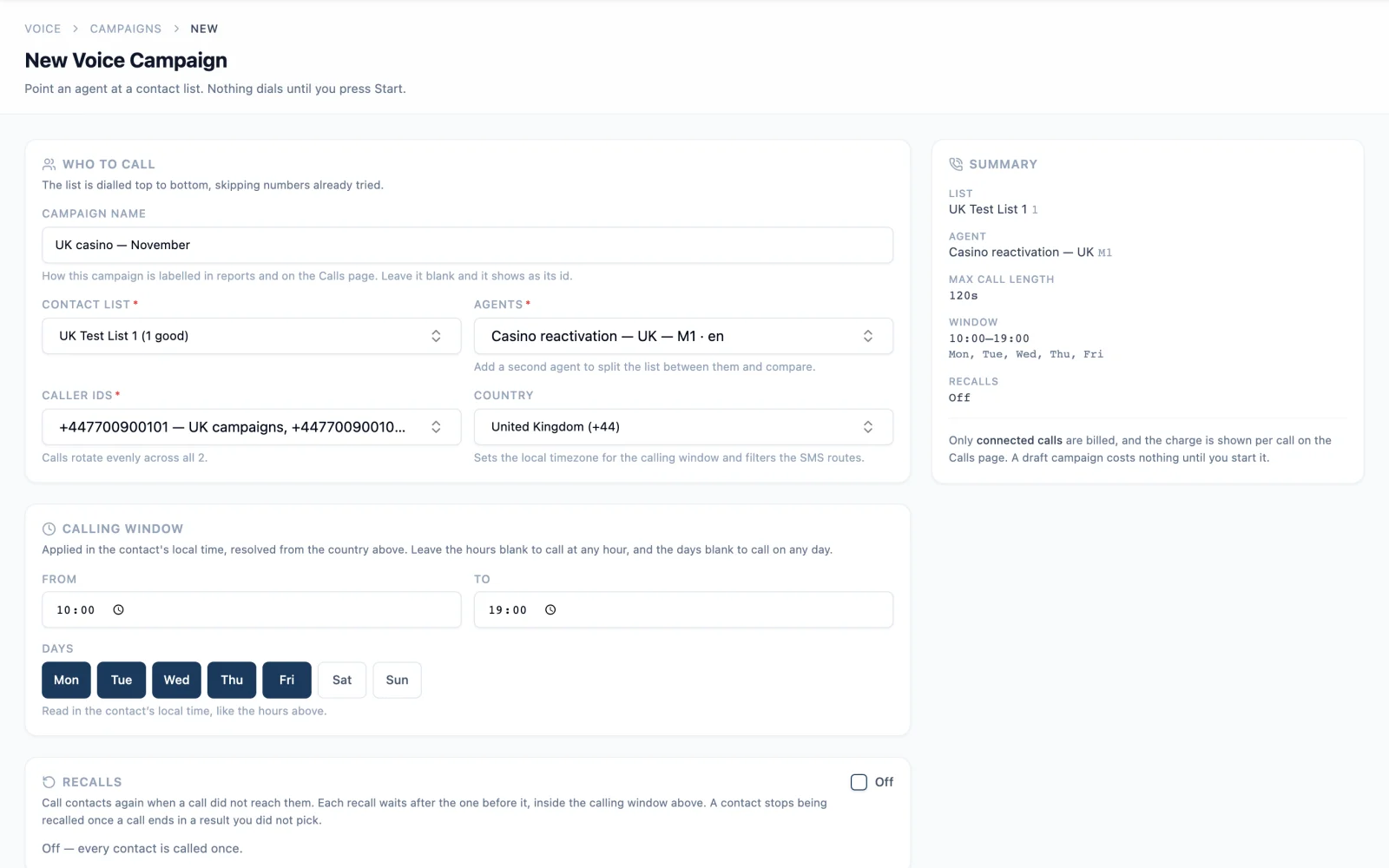
Step 4: Run a campaign
- Import your contacts, with a name column if you want to personalise the calls. See Import contacts.
- Go to Campaigns and click New Campaign.
- Select the Contact list, the Agents, the Caller IDs and the Country.
- Set the calling window: the hours and days, in the local time of the contact.
- Optional: turn on Recalls to call again the contacts who did not answer.
- Click Create campaign. The campaign is saved as a draft, which costs nothing.
- Click Start calling. Dialling starts within a minute.
More: Run an AI call campaign.
Step 5: Read the results and send the leads
- Open the campaign to see Dialled, Answered, SMS sent and Spend.
- Go to Calls and click a call. Click Transcript & recording to listen to the call and read the conversation.
- Go to Lead delivery to send each interested contact to your CRM as soon as the call ends.
Read the transcripts of the first 20 calls of each new campaign. They show quickly where the prompt needs work. Then change the prompt, test it again in the chat, and continue.
More: Calls, transcripts and costs and Send leads to your CRM.
Need more help? Contact support.