Connect your phone numbers
Your contacts see a caller ID when the agent calls them. For campaigns and test calls, you use your own numbers. Connect them from your SIP trunk or your Twilio account. Calls from your own numbers are billed at the flat per-minute AI rate, whatever the destination. Your carrier bills you for the line.
Connect a number
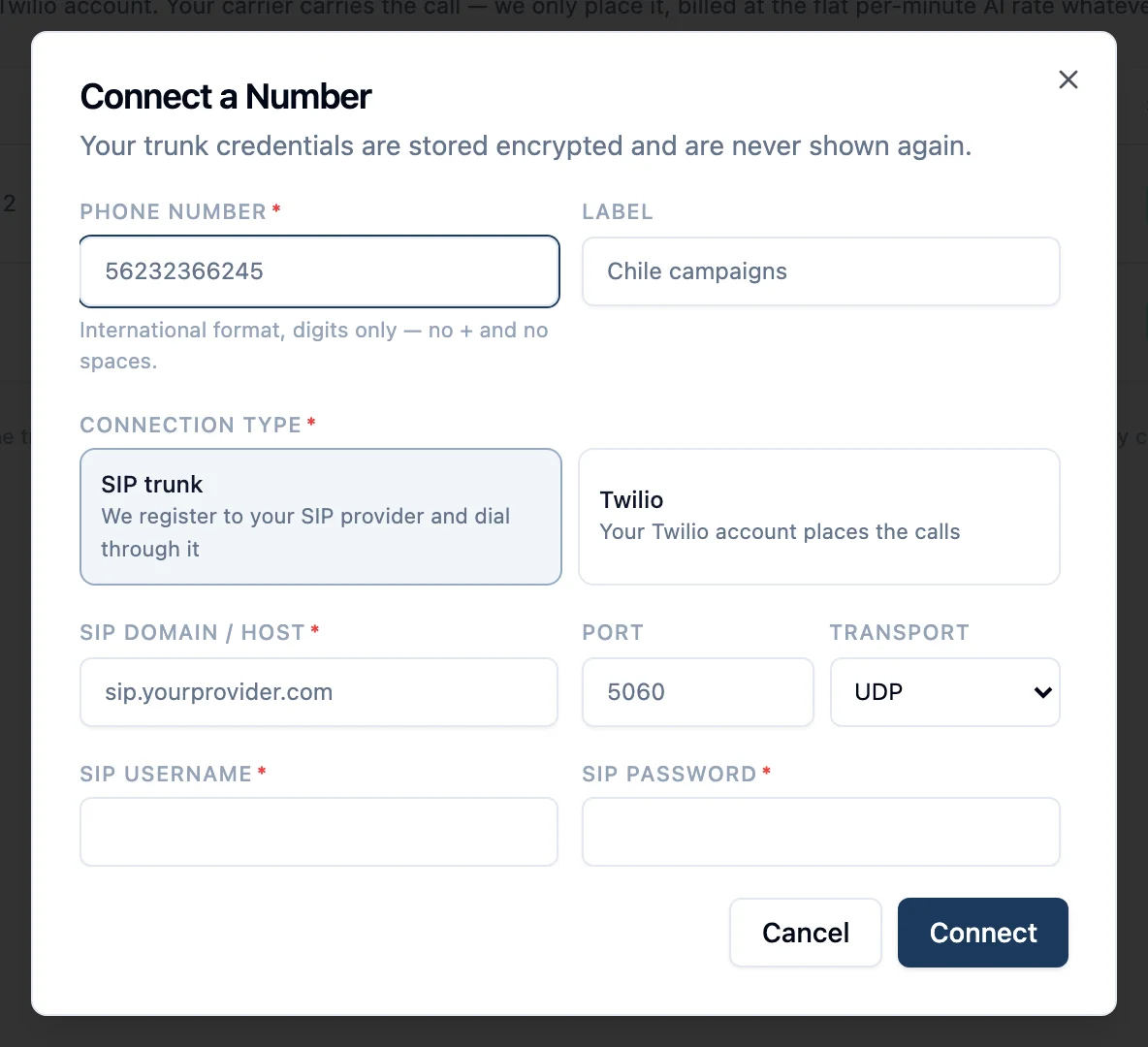
- Go to AI Calls > Numbers.
- Click Connect Number.
- In Phone number, type the number in international format, digits only, with no + and no spaces (for example
447700900123). - Optional: type a Label, for example Chile campaigns.
- Select the Connection type and fill in the fields (see below).
- Click Connect.
SIP trunk
- SIP domain / host: the host name of your SIP provider.
- Port: usually
5060. - Transport: UDP or TCP.
- SIP username and SIP password: the credentials of the trunk.
Twilio
- Account SID and Auth token: from your Twilio console. The number must be in this Twilio account.
Number status
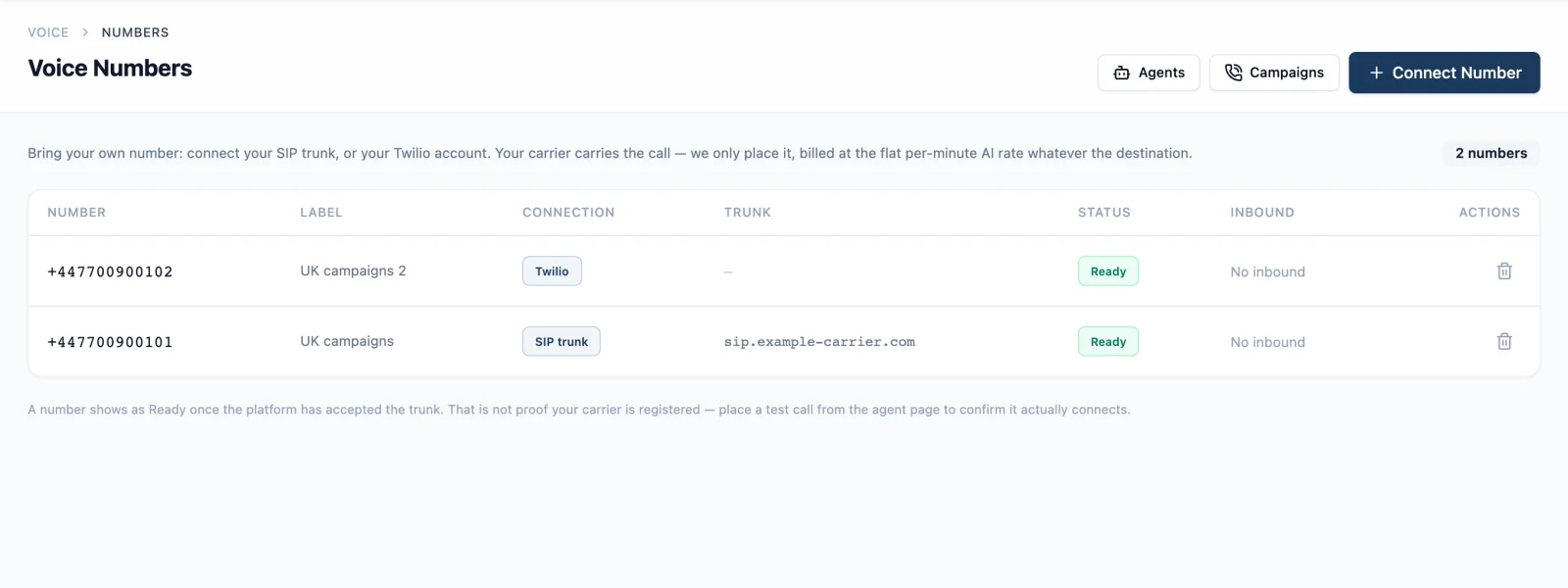
| Status | Meaning |
|---|---|
| Connecting | We are setting up the number. Wait a few moments. |
| Ready | The number can place calls. |
| Failed | The connection did not work. Check the host, port and credentials, then connect the number again. |
Ready does not prove that your carrier accepts the calls. Place a test call from the number before you use it in a campaign.
Use several numbers
A single number that makes all the calls of a campaign gets flagged as spam quickly. Connect several numbers and select all of them in the campaign. The campaign rotates the calls across the numbers.
Inbound calls
When a contact calls your number back, an agent can answer. The Inbound column shows the agent that answers, or No inbound. To set an inbound agent, contact support.
Disconnect a number
Click the delete icon on the number row. You cannot disconnect a number while an unfinished campaign uses it. Stop or finish the campaign first.
Need more help? Contact support.