Automatic follow-ups and sequences
A trigger sends the next message automatically when something happens to a message of your campaign. Chain triggers to build a sequence: a reminder to contacts who did not open, a second offer to contacts who clicked but did not buy, or an SMS to contacts who did not react to the email.
Triggers are part of the new Email tab. Ask your account manager to turn it on for your account.
Examples
| Goal | When | Wait | Then |
|---|---|---|---|
| Reminder to non-openers | Not opened | 1 day | Send an email with the subject "Re: {{{subject}}}" |
| Second chance for clickers | Clicked, If: No sale yet | 2 hours | Send an email with a stronger offer |
| Switch channel | Not clicked | 24 hours | Send an SMS (from one of your SMS campaigns) |
| Welcome series | New contact joins the list | 0 minutes | Send a welcome email |
| Clean-up | Bounced | 0 minutes | Add to a list (for example a "bounced" list) |
Add a trigger
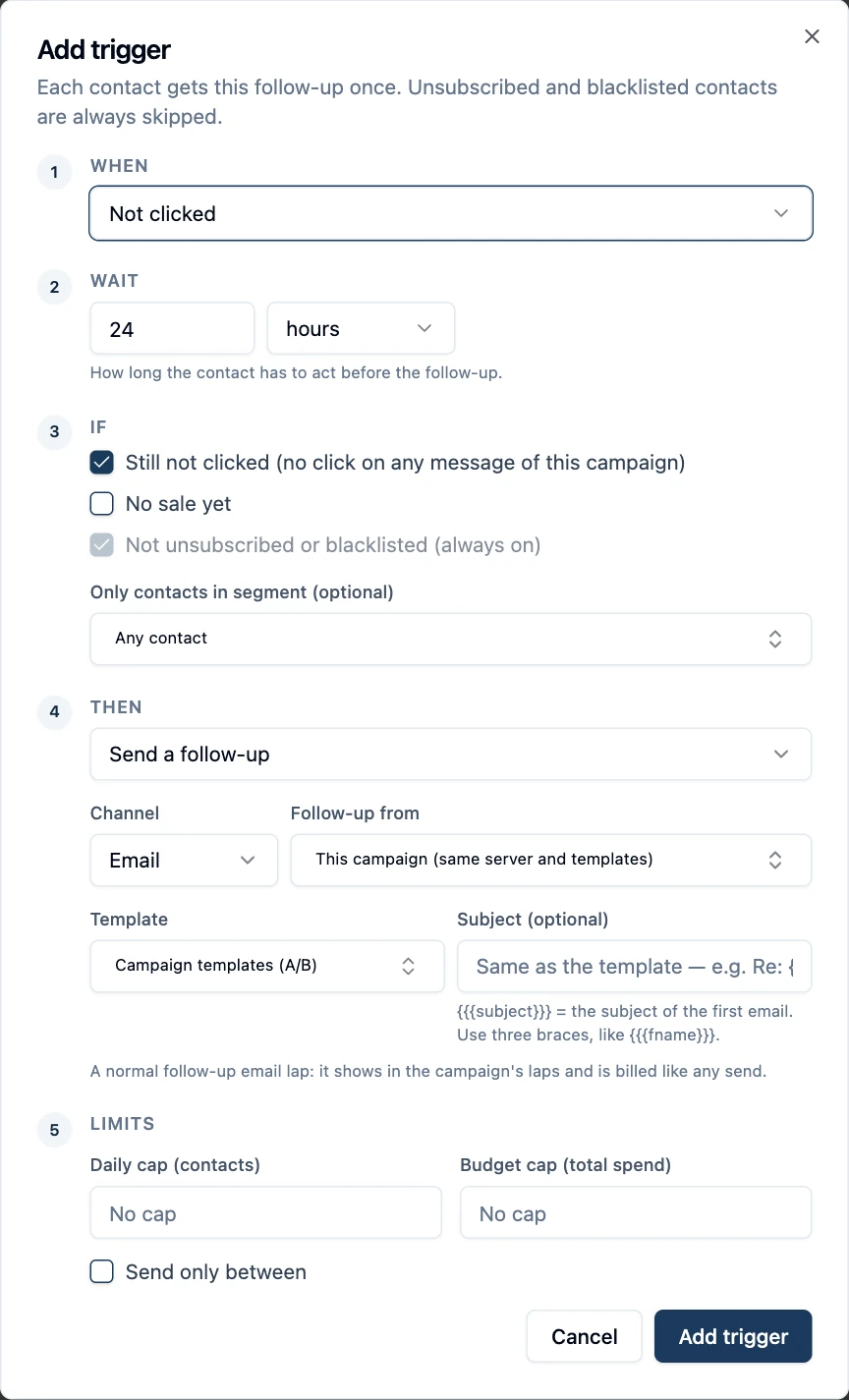
- Open the campaign and scroll to Triggers.
- Click Add trigger.
- When: select the event (see the table below).
- Wait: set how long the contact has to react, in minutes, hours or days.
- If: select the conditions that must still be true after the wait, for example Still not clicked or No sale yet. You can also limit the trigger to the contacts of a segment.
- Then: select what happens — Send a follow-up, Add to a list or Call a webhook.
- For an email follow-up, select the Template and, if you want, a Subject.
{{{subject}}}is the subject of the first email. - Limits (optional): a daily cap of contacts, a budget cap, and the hours when the follow-up may go out.
- Click Add trigger at the bottom of the dialog. The trigger checks every minute.
Events
| When | Meaning |
|---|---|
| Message sent | Every contact who got the message. |
| Not opened | The contact did not open the email within the wait time (email campaigns). |
| Not clicked | The contact did not click within the wait time. |
| Clicked | The contact clicked a link. |
| Lead (postback) | Your conversion pixel sent a lead for the message. |
| Sale (postback) | Your conversion pixel sent a sale for the message. |
| Bounced | The email bounced (email campaigns). |
| Undelivered (DLR failed) | The SMS was not delivered (SMS campaigns). |
| New contact joins the list | A contact is added to a list of the campaign. |
Rules
- Each contact gets the follow-up of a trigger once.
- Unsubscribed and blacklisted contacts are always skipped.
- A follow-up shows as its own send in the campaign and is charged like any send.
- An SMS follow-up needs an SMS campaign that has sent once. The follow-up copies its route, text and sender ID. Only contacts that have both an email address and a phone number in your lists get it.
- Click Pause on a trigger to stop it for a while. A paused, cancelled or deleted campaign stops its triggers.

Build a sequence of campaigns
A follow-up can send another campaign. Add a trigger on that campaign too, and you have a sequence:
- Campaign 1 (offer) → trigger "Not opened, 1 day" → resend with a new subject.
- Campaign 1 → trigger "Clicked, If: No sale yet, 1 day" → Campaign 2 (a stronger offer).
- Campaign 2 → trigger "Not clicked, 2 days" → an SMS reminder.
Need more help? Contact support.