Build email templates
Build your emails with drag-and-drop blocks, write them with AI, or paste your own HTML. A template keeps its subject and preview text, so you can use it in many campaigns.
Create a template
- Go to Email > Templates and click New template.
- Type the template name at the top.
- In the Design tab, type the Subject and the Preview text (the line that shows after the subject in the inbox).
- Add blocks: click a block in Blocks to add it at the end, or drag it to a place in the email.
- Click a block in the email to change it in the panel on the right.
- Click Save template.
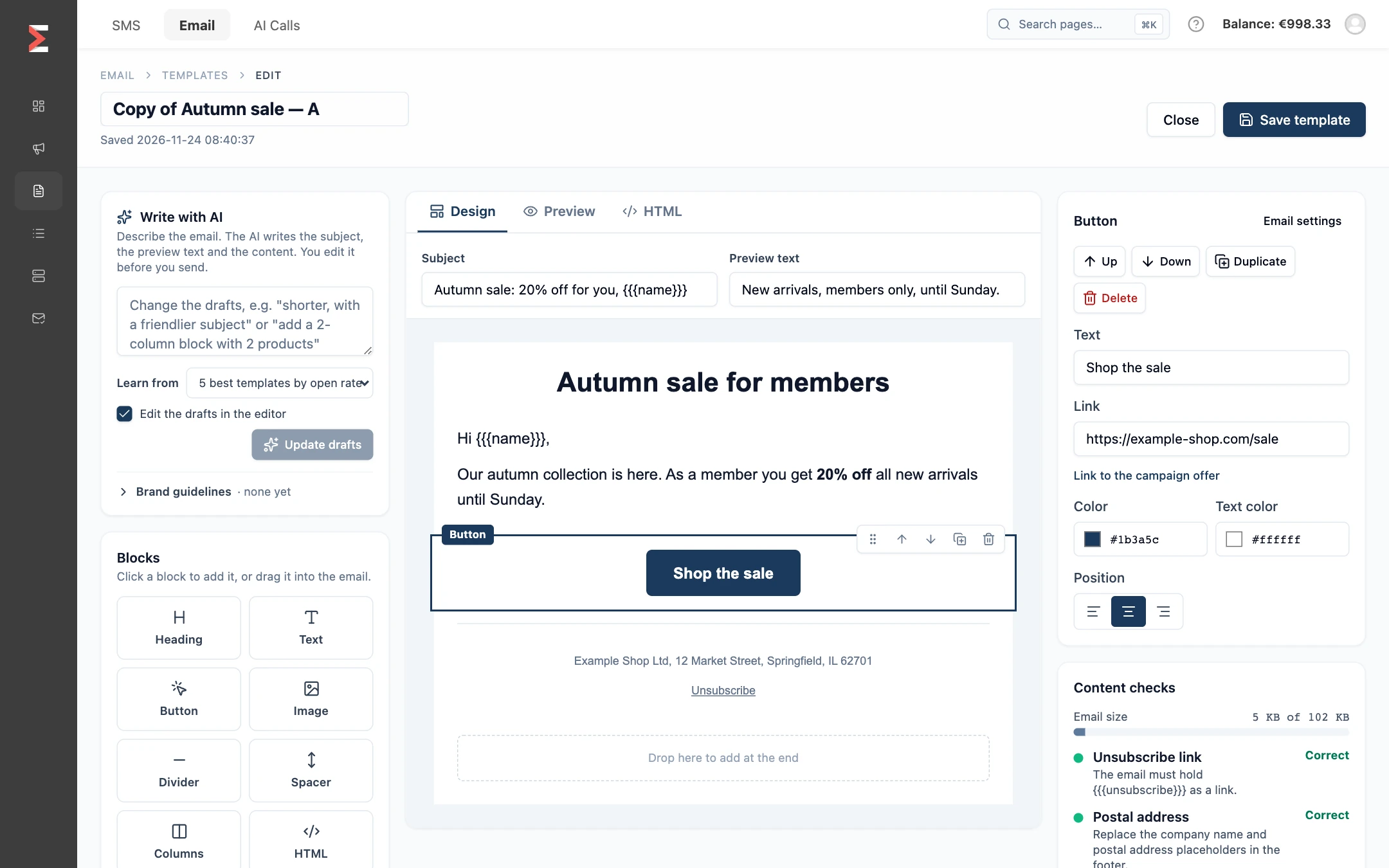
Blocks
| Block | Use |
|---|---|
| Heading, Text | Titles and paragraphs. Text can be bold, italic and have links. |
| Button | A call to action with a link. |
| Image | A public https:// image with alternative text and an optional link. |
| Divider, Spacer | A line, or empty space between blocks. |
| Columns | 2 columns side by side, for example 2 products. |
| HTML | Your own HTML code. |
| Footer | Your company name, postal address and the unsubscribe link. Required. |
Use Up, Down, Duplicate and Delete in the block panel, or the keyboard: Enter selects a block, Alt + arrow up or down moves it.
Write with AI
- In Write with AI, describe the email, for example "Autumn sale for members: 20% off new arrivals until Sunday".
- In Learn from, select 5 best templates by open rate to write in the style of your best emails, or select your own templates.
- Optional: open Brand guidelines and type your tone of voice, colors and words to avoid.
- Click Write draft. Change the draft in the editor, or ask for changes, then save.
When the template already has content and Edit the drafts in the editor is on, the button is Update drafts: describe the change, for example "shorter, with a friendlier subject", and the AI changes the content you have. To write new drafts instead, turn off Edit the drafts in the editor.
Writing a draft takes about a minute. You can write up to 60 drafts a day.
Merge tags
Merge tags put contact data into the subject, the preview text and the content. Use 3 braces.
| Tag | Becomes |
|---|---|
{{{name}}}, {{{fname}}}, {{{lname}}} | First name, last name |
{{{email}}}, {{{phone}}} | Email address, phone number |
{{{custom1}}} … {{{custom5}}} | Your custom fields from the import |
{{{unsubscribe}}} | The unsubscribe link. Required in every template. |
{{{camp_id}}}, {{{list_id}}}, {{{lap_id}}} | Campaign ID, list ID and send ID |
Content checks
The Content checks panel checks the template while you work:
- Unsubscribe link: the template must have
{{{unsubscribe}}}as a link. - Postal address: replace the placeholders in the footer with your company name and address (a legal requirement for marketing email).
- Email size: Gmail cuts emails above 102 KB. Keep your email well below that.
Preview and test
- The Preview tab shows the email on Desktop and Mobile, and in Dark mode.
- The HTML tab shows the code.
- To get the email in your mailbox, use Send a test in the campaign wizard (Review step).
Templates that were sent
When a campaign has sent a template, the template cannot change any more: the campaign keeps the version it sent. Click Duplicate to edit to make a copy that you can change.
Need more help? Contact support.