Connect a sending server
A sending server is the SMTP account that sends your emails: your own mail server, Amazon SES, or any email service that gives you an SMTP login. You can connect more than one server. A campaign then spreads its emails over all the servers you select.
Before you start
Get these details from your email provider:
- The SMTP host and port (usually 587 or 465).
- The SMTP user name and password.
- The From address you send from. Use an address on a domain you own, for example
news@yourshop.com.
Add a server
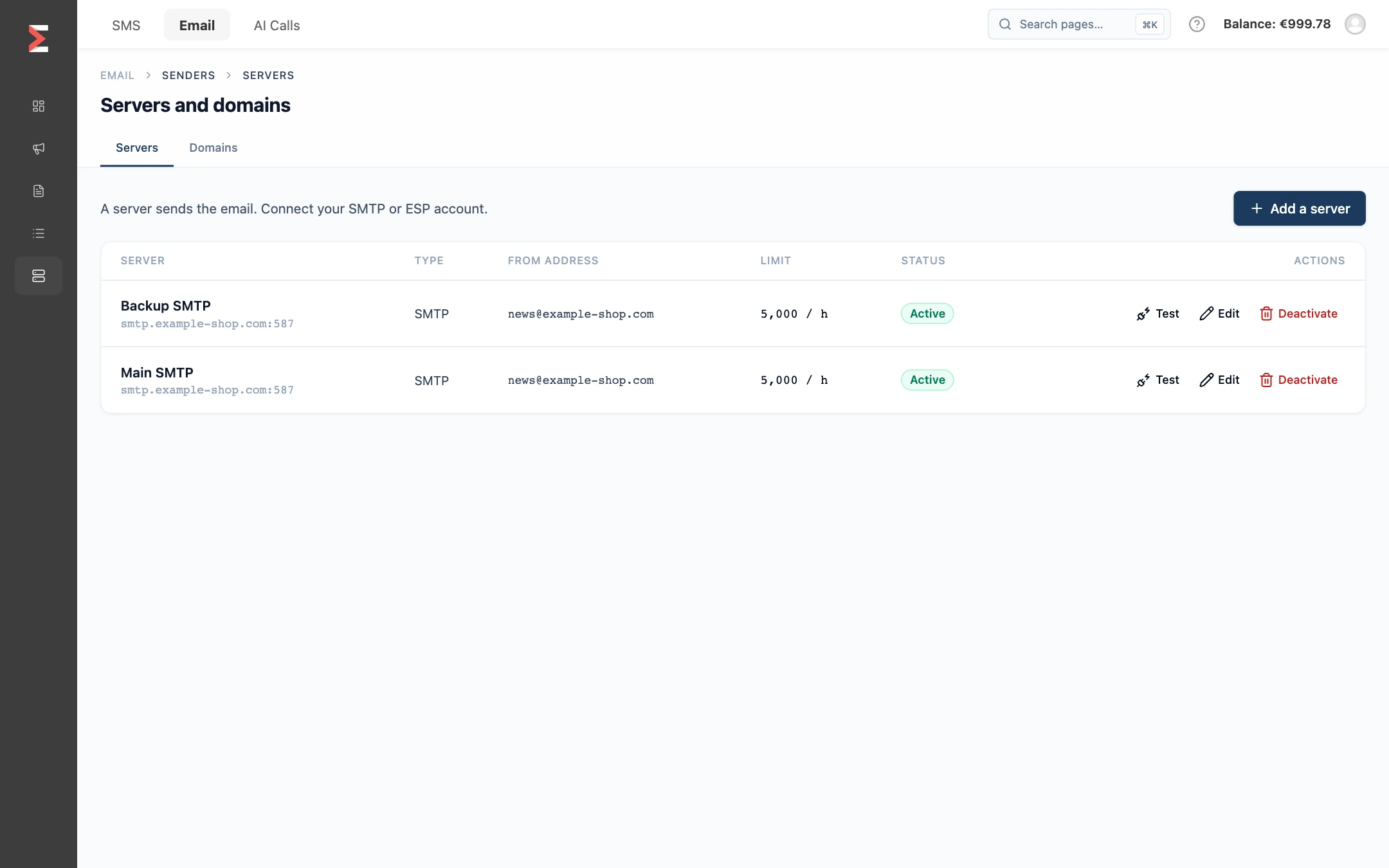
- Go to Email > Senders > Servers.
- Click Add a server.
- Fill in the fields (see the table below).
- Click Add the server.
- Click Test on the new server. The test connects to the SMTP server with your login.
Server fields
| Field | What to enter |
|---|---|
| Name | A name only you see, for example "SES — eu-west-1". |
| Type | SMTP for any SMTP server, or Amazon SES (SMTP). |
| Host, Port | The SMTP host and port of your provider. |
| Encryption | Automatic (by port) uses SSL on port 465 and STARTTLS on 587 and 25. Select SSL, STARTTLS or None to set it yourself. |
| User name, Password | The SMTP login. The password is stored encrypted and is never shown again. On edit, leave it empty to keep the saved password. |
| From address, From name | The sender of your emails. A campaign can change the From name. |
| Reply-to | Where replies go, for example your support address. |
| Limit | The overall maximum emails per hour or per day for this server. Empty = no limit. |
| Speed per mailbox provider | The maximum emails per hour to Gmail, Outlook, Yahoo, iCloud and other domains. See Sending speed per mailbox provider. |
Test results
The result shows as a message at the bottom of the page:
- Green — "the connection works": the server accepted the login. You can send.
- Yellow — "SMTP works": sending works, but the IMAP mailbox (bounces and replies) did not connect. IMAP is optional: without it, the server only sends.
- Red: the message shows the reply of the server, for example
535 5.7.8 Authentication failed. Check the user name, the password, the port and the encryption.
Deactivate a server
Click Deactivate to stop sending through a server. The server stays in the list, with its history, and new campaigns cannot select it.
Do you need a server? Ask your account manager about a dedicated email server with warmup.
Need more help? Contact support.